

How to Pay for Acceliqs EA Service License
Overview
Some participation on Acceliqs requires a license. A license payment is a distinct step from funding your account with capital — it's a specific payment tied to activating or maintaining a particular participation. This guide explains what a license payment is, how to make one, and what to expect once it's processed.
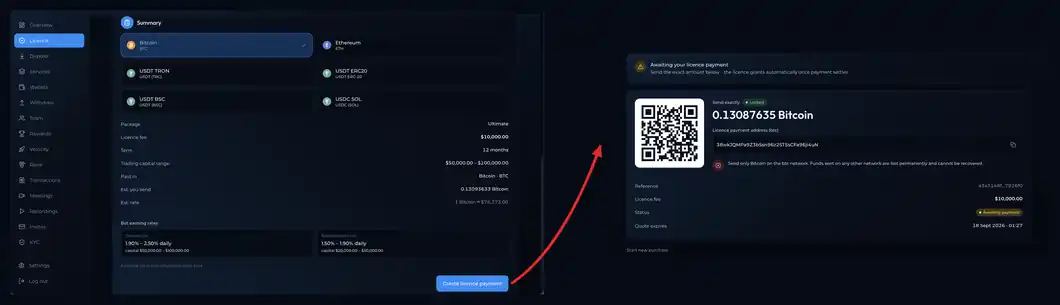
Understanding License Payments
It's worth being clear on the distinction:
- A deposit adds capital to your account — funds that you deploy and that earn on your behalf. That capital remains yours, held in your Principal wallet.
- A license payment is a payment made to activate or maintain a specific participation or entitlement. It is its own transaction, separate from your capital deposits.
Understanding this difference helps you know what each payment is for: depositing builds your working capital; paying for a license unlocks or maintains the particular participation the license covers.
Before You Pay
Before making a license payment, have the following clear:
- Know which license applies. Understand the license you need to pay for and what it covers — the participation or entitlement it unlocks.
- Know the amount. Be clear on the license payment amount so you can confirm it during the process.
- Have your payment method ready. As with deposits, license payments are made through supported payment methods; ensure yours is ready.
Making a License Payment
To pay for a license:
- Go to the license area of your account. Find the section where licenses or license payments are handled — typically alongside the relevant participation or in your account's payment options.
- Select the license you're paying for. Choose the specific license the payment applies to, so the payment is correctly associated with it.
- Review the payment details. Check the license and the amount before proceeding, so you're confident you're paying for the right thing.
- Choose your payment method and confirm. Select a supported payment method, provide the necessary details, and confirm the payment.
- Complete any required payment steps. Depending on the method, you may be directed to finalize the payment through the payment provider. Complete those steps to submit the payment.
What Happens After You Pay
Once your license payment is submitted:
- The payment is processed. Your license payment enters the platform's process for review and confirmation, so that the payment is verified before the license is activated.
- The license is applied once confirmed. After the payment is confirmed and approved, the license is applied to your account — activating or maintaining the participation it covers.
- You can track the status. Your account reflects the status of your license payment, so you can follow it from submission through to confirmation and activation.
If a License Payment Is Pending
If you've made a license payment and it hasn't yet reflected:
- Allow time for processing. Like deposits, license payments are confirmed as part of a process — a payment that's still pending will reflect once it's confirmed and approved.
- Check the status in your account. Your account shows the status of the license payment, so you can see whether it's pending, confirmed, or applied.
- Contact support if needed. If a license payment has been completed on the payment provider's side but isn't reflected after a reasonable time, contact support with the details for help resolving it.
Summary
A license payment is a specific payment that activates or maintains a particular participation — distinct from depositing capital. To pay for one, go to the license area, select the license, review the amount, and pay through a supported method. Once the payment is confirmed and approved, the license is applied to your account. Keep the distinction in mind: deposits build your working capital, while a license payment unlocks the participation the license covers, and use your account's status tracking to follow either through to completion.