

Account Security – 2-Factor Authentication Setup
Two-factor authentication (2FA) adds a second layer of protection to your Acceliqs account. Once it's on, sensitive actions need your password and a verification code, so your account stays protected even if someone learns your password.
How to set up 2FA
- Log in to your Acceliqs account.
- Click the Settings menu.
- Click Manage 2FA.
You'll see the Security page, which lists the two verification methods you can use:
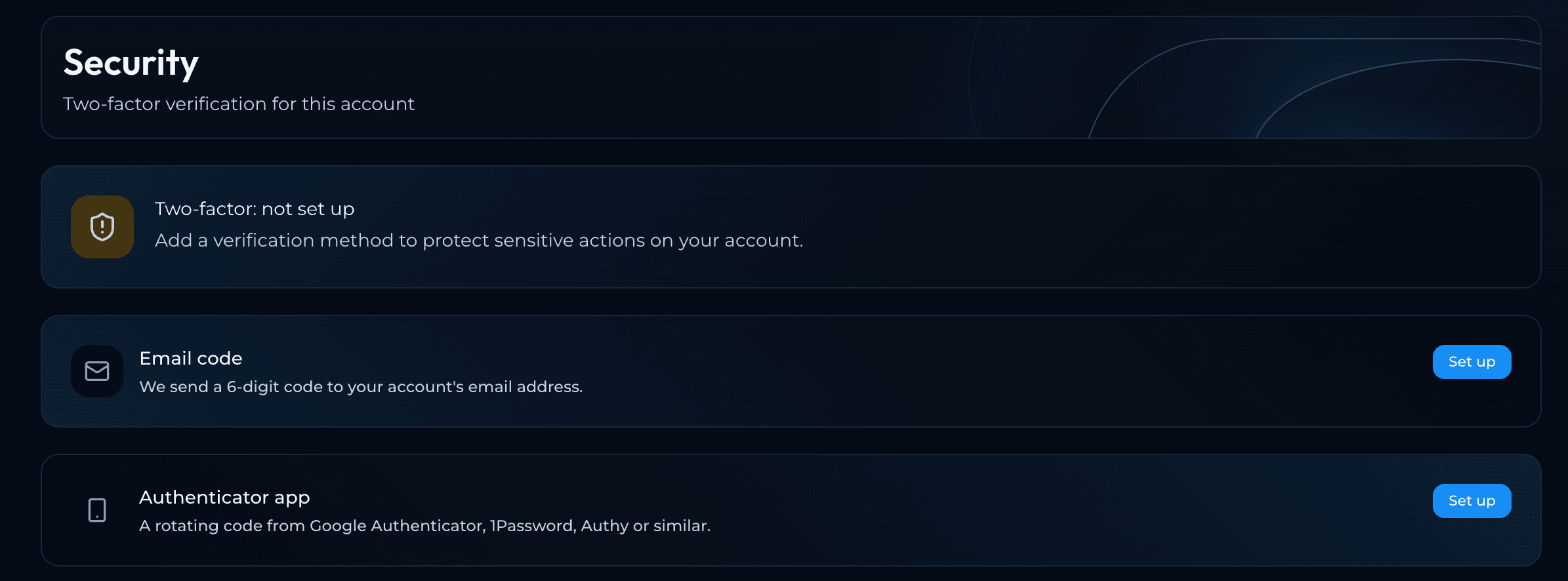
- Email code: we send a 6-digit code to your account's email address each time a verification is needed.
- Authenticator app: a code that changes every few seconds, from an app such as Google Authenticator, 1Password or Authy.
Click Set up next to the method you want and follow the prompts. You can set up both for extra flexibility. Until at least one method is added, the status at the top of the page reads "Two-factor: not set up."
Choosing which actions are protected
Once 2FA is set up, the Protected actions section lets you choose which actions ask for a second step, and which method each one accepts:
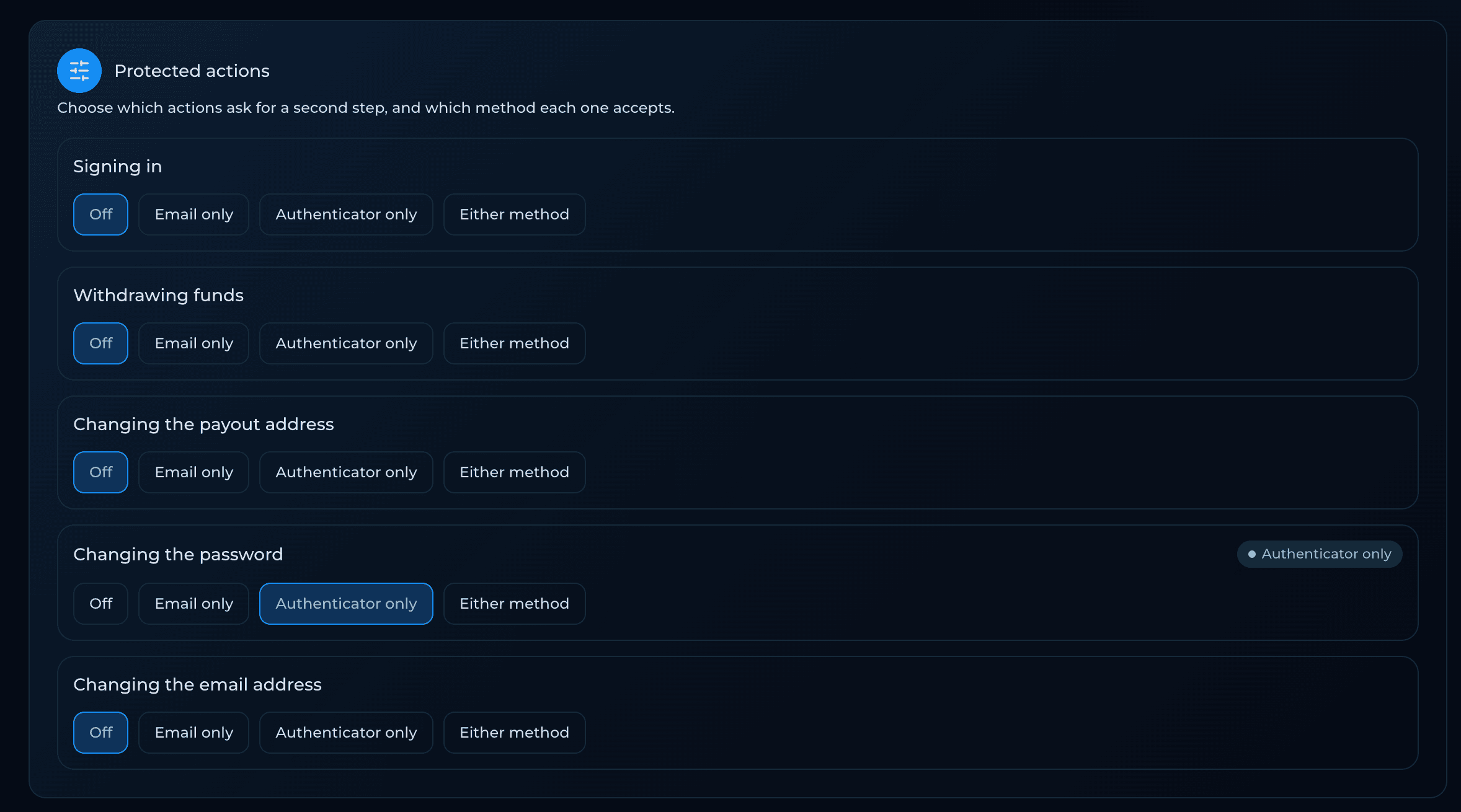
The actions you can protect are:
- Signing in
- Withdrawing funds
- Changing the payout address
- Changing the password
- Changing the email address
For each action, pick one of these options:
- Off: no second step is needed.
- Email only: a code must be entered from your email.
- Authenticator only: a code must be entered from your authenticator app.
- Either method: you can use whichever method is more convenient.
The green label on the right of each action shows the option currently in use.
Important: After you turn on 2FA, withdrawals are paused for 24 hours. This protects your account in case the change was not made by you. Withdrawals are available again automatically once the 24 hours are up.